
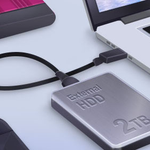






External hard drives are useful for storing photos, videos, documents, business files, and personal backups. They provide extra storage space and make it easy to transfer important data between computers. However, accidentally deleting files from an external hard drive can be stressful, especially when those files are not available anywhere else.
The good news is that deleted files are sometimes recoverable. Your chances depend on how the files were deleted, whether new data has overwritten them, and whether the drive is physically damaged. Taking the right steps immediately can help protect your remaining data and improve the possibility of successful recovery.
Whether you use an external HDD or an external SSD, understanding the available recovery methods can help you make an informed decision. Technology resources such as magfusehube can also be useful when exploring practical solutions to common computer storage problems.
Can You Recover Deleted Files from an External Hard Drive?
Yes, deleted files can often be recovered, but success is not guaranteed. When you delete a file, the operating system may simply mark the storage space it occupied as available for new data. Until that space is reused, some recovery software may be able to locate and restore the file.

However, recovery becomes more difficult when new files overwrite the deleted data. The situation can also vary depending on the storage device, file system, and deletion method.
For example, deleting a document accidentally may be easier to resolve than recovering files from a physically damaged hard drive. Similarly, an external SSD may behave differently from a traditional hard disk because of features such as TRIM, which can make deleted data unrecoverable.


What to Do Immediately After Losing Files
Before trying recovery methods, take a few precautions to avoid making the situation worse.
1. Stop Using the External Hard Drive
Disconnect the drive from activities that could write new data to it. Avoid saving documents, installing software, downloading files, or copying other data onto the affected drive.
New data can overwrite the storage space previously occupied by deleted files. If this happens, recovery may become impossible.
2. Do Not Format the Drive
If Windows displays a message asking you to format the drive before using it, do not immediately accept the request. Formatting can change the file system information needed to access your files.


If the drive suddenly becomes inaccessible, investigate the cause before attempting repairs. Formatting should not be your first response to missing data.
3. Check Whether the Drive Is Physically Damaged
Pay attention to unusual clicking sounds, repeated disconnections, burning smells, or failure to spin up in a traditional hard disk drive.
If you notice these symptoms, disconnect the device and avoid repeatedly reconnecting it. Physical damage may require professional data recovery services.
Method 1: Check the Recycle Bin
The Recycle Bin is a good starting point when files disappear from a Windows computer.
When you delete files from an external drive, Windows may sometimes send them to the Recycle Bin, depending on the drive’s configuration and how the files were deleted. However, files removed using Shift + Delete or certain other methods may bypass it.
Follow these steps:
- Connect your external hard drive to the computer.
- Open the Recycle Bin from the desktop.
- Look for the missing files or folders.
- Right-click a file you want to recover.
- Select Restore, if available.
The restored file should return to its original location.
If you cannot find the files in the Recycle Bin, move on to the next method.
Method 2: Search for Missing Files in Windows
Sometimes files have not been deleted at all. They may have been moved into another folder, renamed, or hidden accidentally.
Open File Explorer and select your external hard drive. Use the search box to look for a file name, extension, or keyword.
For example, searching for .jpg may help locate image files, while searching for .pdf may reveal PDF documents.
You can also check whether hidden items are visible in File Explorer’s View settings. If the drive contains many folders, inspect likely locations before using recovery software.
This method is particularly helpful when files are missing from their expected folders but the storage space on the drive has not changed significantly.
Method 3: Use Data Recovery Software
If the deleted files are not in the Recycle Bin, data recovery software may be able to scan the external hard drive and locate recoverable information.
Choose a reputable tool that supports your operating system, file system, and type of storage device. Read its instructions carefully before starting a scan.
Steps to Recover Files with Recovery Software
Step 1: Download the recovery tool
Download the software from its official website. If possible, use your computer’s internal drive or another healthy storage device rather than the affected external drive.
Step 2: Connect and select the external drive
Connect the drive and open the recovery application. Select the correct external disk or partition from the available list.
Double-check the drive’s capacity and name to avoid scanning the wrong device.
Step 3: Start a scan
Begin with the recommended scan. If the application offers a deeper scan, use it when a normal scan does not locate the missing files and the drive appears healthy.
Deep scans may take considerably longer, particularly on large-capacity drives.
Step 4: Preview the results
Many recovery applications display file names, formats, folders, or previews. Examine the results and select the files you need.
A visible file name does not always mean the file can be restored successfully, so preview options can be helpful.
Step 5: Save the recovered files elsewhere
Recover files to your computer’s internal drive or a different external storage device. Never save recovered data back onto the same drive you are scanning, because doing so could overwrite other recoverable information.
Is Free Recovery Software Enough?
Free tools can be sufficient for simple data-loss situations. Some provide basic scanning and recovery, while others limit the amount of data you can restore without paying.
Compare features, file-system support, recovery limits, and privacy policies before choosing a tool. Avoid applications that make unrealistic promises or require unnecessary access to sensitive information.
Method 4: Try Windows File Recovery
Windows users can also consider Microsoft’s Windows File Recovery utility. It is a command-line tool designed to help recover certain deleted files from supported storage devices.
It may be useful if you are comfortable following technical instructions. The correct recovery mode and command depend on the source file system, destination location, and circumstances of the deletion.
Microsoft provides official instructions and compatibility details in its Windows File Recovery guide.
Before running a recovery command, identify the affected drive letter carefully. The destination must be different from the source drive. Incorrect commands or unnecessary disk activity can complicate an already difficult recovery.
If you are unfamiliar with command-line tools, a reputable recovery application with a graphical interface may be easier to use.
Method 5: Restore Files from a Backup
If you regularly back up your external hard drive, restoring from a backup may be the simplest and safest solution.
Check any backup locations you use, including another external drive, a network storage device, or a cloud storage account.
Look for older copies of the missing files and confirm that they contain the information you need before restoring them.
If you use backup software, open its recovery interface and select the appropriate backup date. Restore the files to a separate location first so you can compare them with any existing copies.
Backups are especially valuable when deleted files have already been overwritten or the external drive has developed hardware problems.
What If the External Hard Drive Is Not Detected?
Sometimes the problem is not deleted files but an external hard drive that no longer appears in File Explorer.
Try these basic checks:
- Connect the drive to another USB port.
- Use a different compatible USB cable.
- Try another computer to rule out a computer-specific problem.
- Check Disk Management to see whether Windows detects the device.
- Confirm whether the drive appears with the correct capacity.
If Windows detects the drive but it has no assigned drive letter, the issue may involve drive configuration. However, do not initialize, format, or create a new partition if the disk contains important data that you need to recover.
If the drive shows the wrong capacity, repeatedly disconnects, or produces unusual mechanical sounds, stop troubleshooting and consider professional assistance.
Why Deleted Files Sometimes Cannot Be Recovered
Several factors can prevent successful recovery.
Overwritten data: Saving new files to the drive may replace the deleted information.
SSD TRIM: On supported SSDs, TRIM can notify the device that certain blocks are no longer needed, potentially reducing recovery chances.
Severe physical damage: A failing drive may not be readable enough for ordinary recovery software to work.
File system corruption: Damage to the file system can make files difficult to locate, even when some underlying data remains.
Secure deletion: Specialized deletion tools may overwrite data deliberately, making ordinary recovery methods ineffective.
Understanding these limitations helps set realistic expectations. No software can guarantee recovery in every situation.
How to Prevent Future Data Loss
Recovering deleted files can take time, so prevention should be part of your regular storage routine.
- Keep multiple copies: Store important files on another drive or in a trusted cloud backup.
- Safely eject the drive: Use Windows’ safe removal option when possible to reduce the risk of data corruption.
- Check before deleting: Review folders carefully before permanently removing large groups of files.
- Monitor drive health: Pay attention to slow transfers, disconnections, and unusual noises.
- Organize important documents: Keep critical files in clearly labeled folders so accidental deletion is less likely.
- Test your backups: Occasionally restore a sample file to verify that your backup system works.
A reliable backup strategy is much more effective than depending on recovery software after a problem occurs.
Conclusion
Recovering deleted files from an external hard drive is often possible, particularly when you stop using the device immediately and avoid overwriting the lost data. Start by checking the Recycle Bin and searching your files, then consider suitable recovery software or Windows File Recovery. If a backup exists, restoring from it may be the easiest option.
If the drive shows signs of physical damage, avoid repeated recovery attempts and seek professional help when the data is valuable. Most importantly, establish a regular backup routine to protect your documents, photos, and other important files against future data loss.